

Let’s explore the Kali!

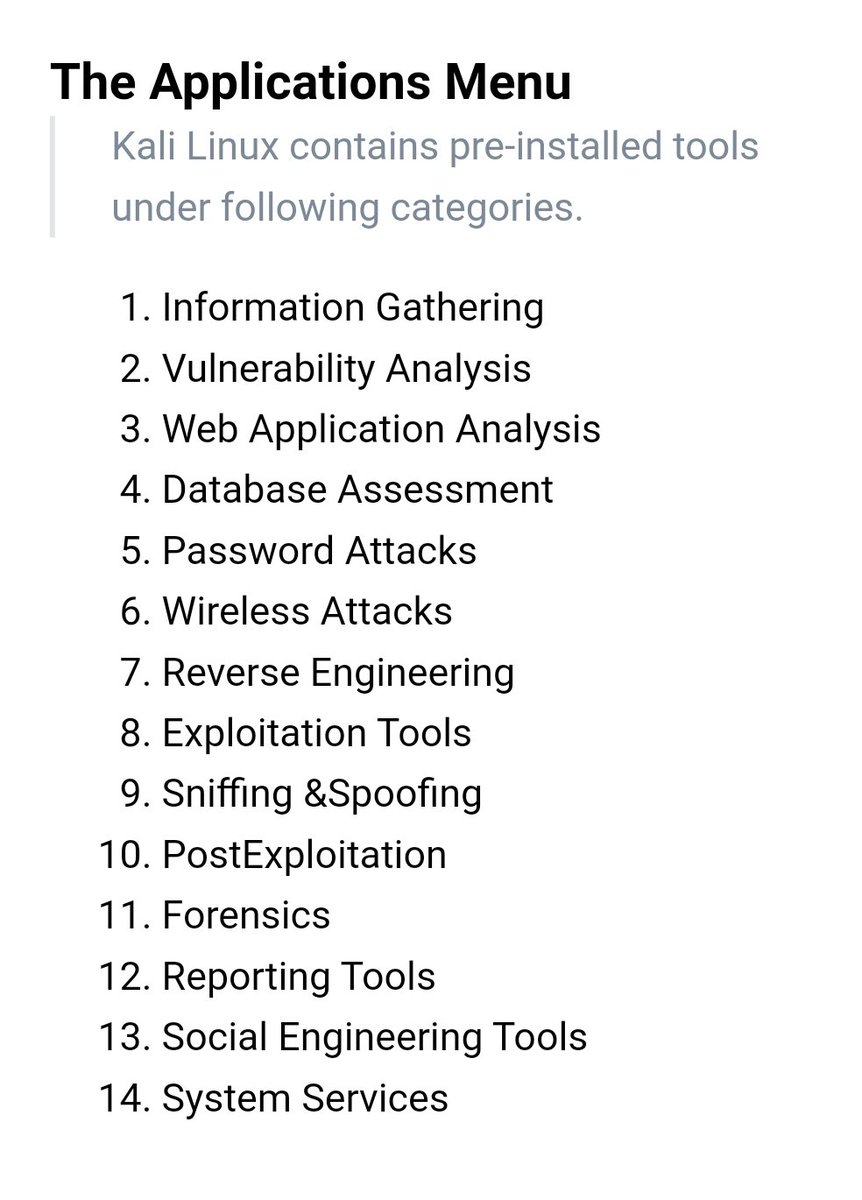
#1 – The Applications Menu
Kali Linux contains pre-installed tools that allow performing various kind of tasks and activities relevant for pen-testers and other information security professionals.
#gettingStartedWithKali

#2 – Create a Bootable Kali USB Drive
Kali Linux makes getting started easy, due to the fact that its disk images are live ISOs, meaning that you can boot the downloaded image without following any prior installation procedure.
https://t.co/wC6EZDkygF
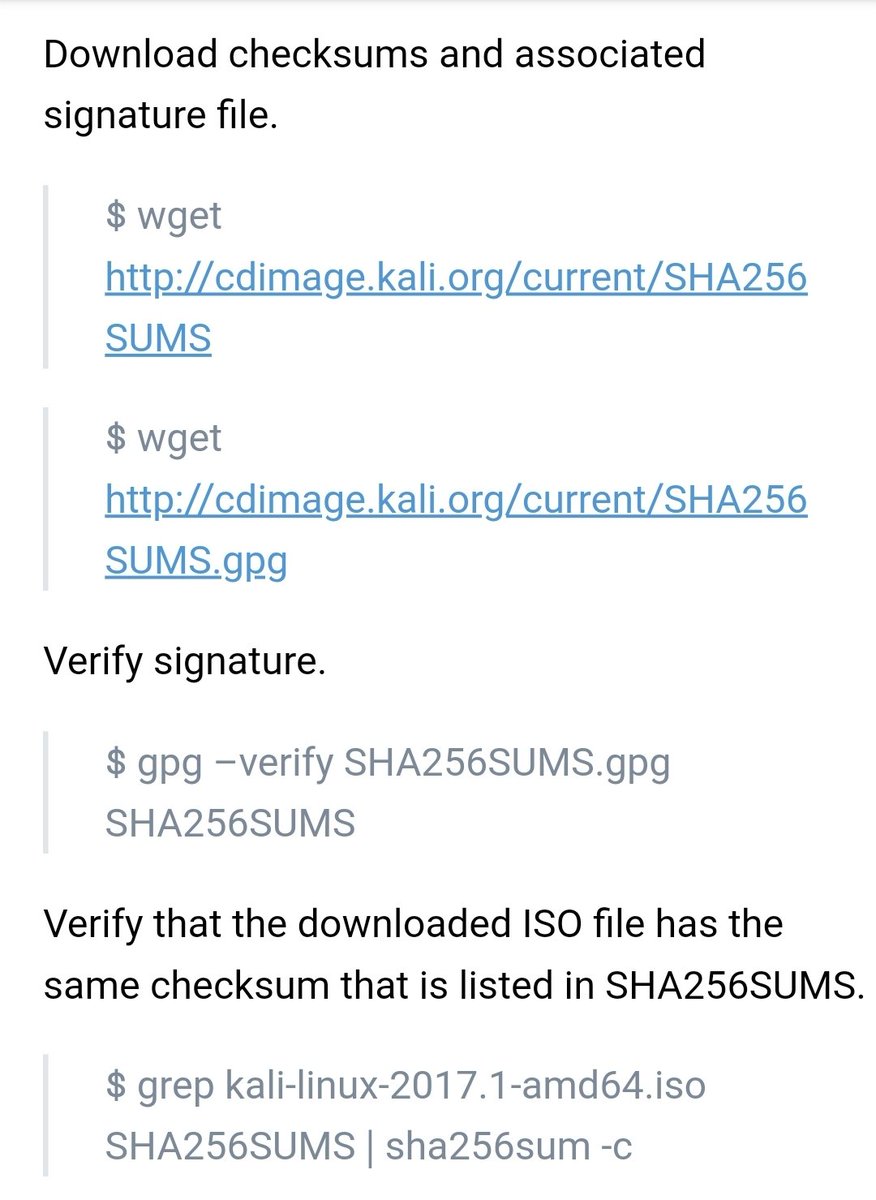
#DownloadAndVerify
https://www.kali.org/downloads



#3 – What is Linux!
Is it an entire operating system or just the “OS kernel”?
1. “Kernel” ensures coordination between hardware and software.
2. “User space” refers to everything that happens outside of the kernel.
Who starts what?
BIOS/UEFI => Boot Loader => OS Kernel
#Kernel


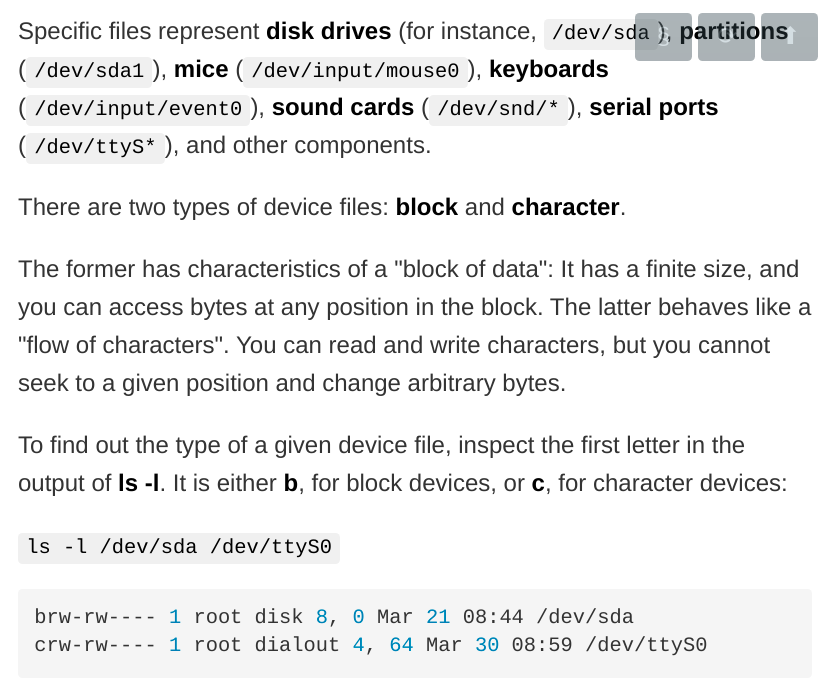
#4 – Device Files
Kernel exports data about detected hardware through /proc/ & /sys/ virtual file systems. Applications access devices via files created within /dev/ folder:
/dev/sda
/dev/sda1
/dev/input/mouse0
/dev/input/event0
/dev/snd/*
/dev/ttyS*
#BlockAndCharacter #Types
#5 – Find and Grep
1) Search for files containing the string ‘needle’
find . -type f -exec grep ‘needle’ {} ;
find . -type f -exec grep -i ‘needle’ {} ;
2) List file names where text pattern has been found
find . -type f -exec grep -l ‘needle’ {} ;
#RecursiveSearch

#5B – An Explanation
https://t.co/7HOd7WfYMy
find . -type f -exec grep ‘needle’ {} ;
https://www.valleyprogramming.com/blog/linux-find-grep-commands-exec-combine-search

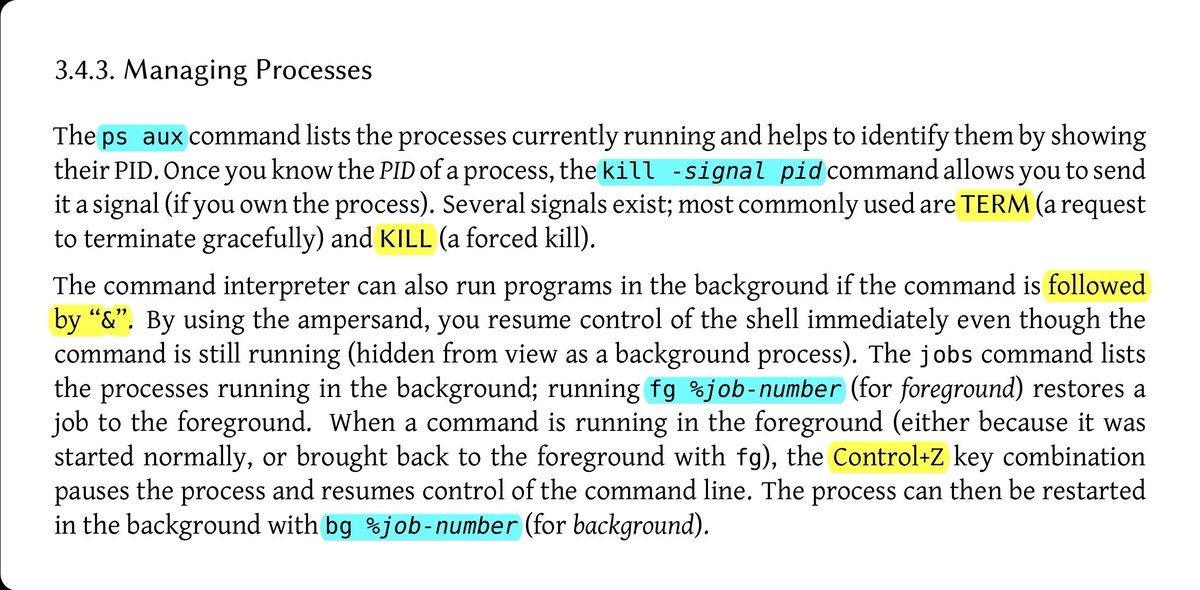
#6 – Managing Processes
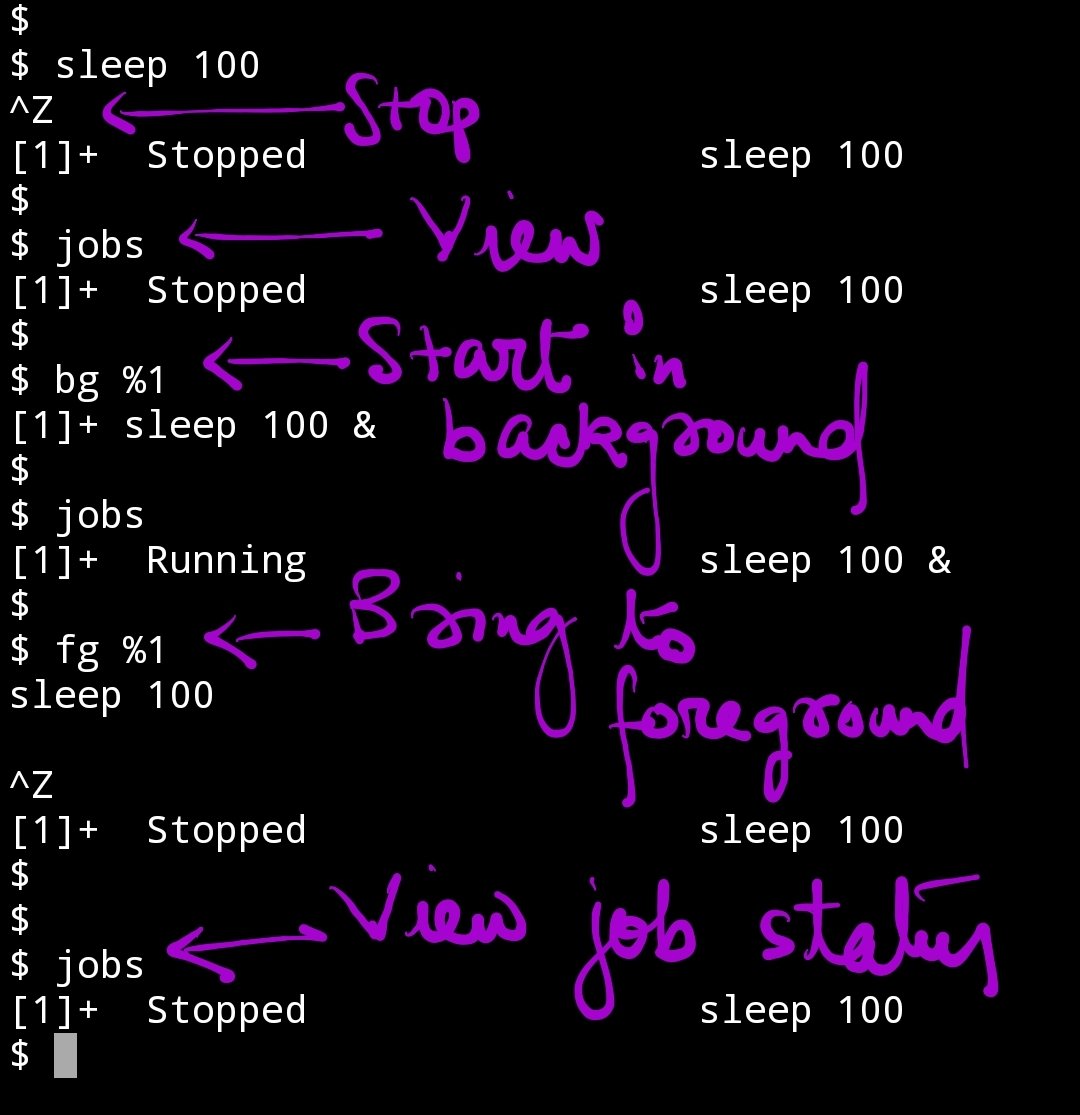
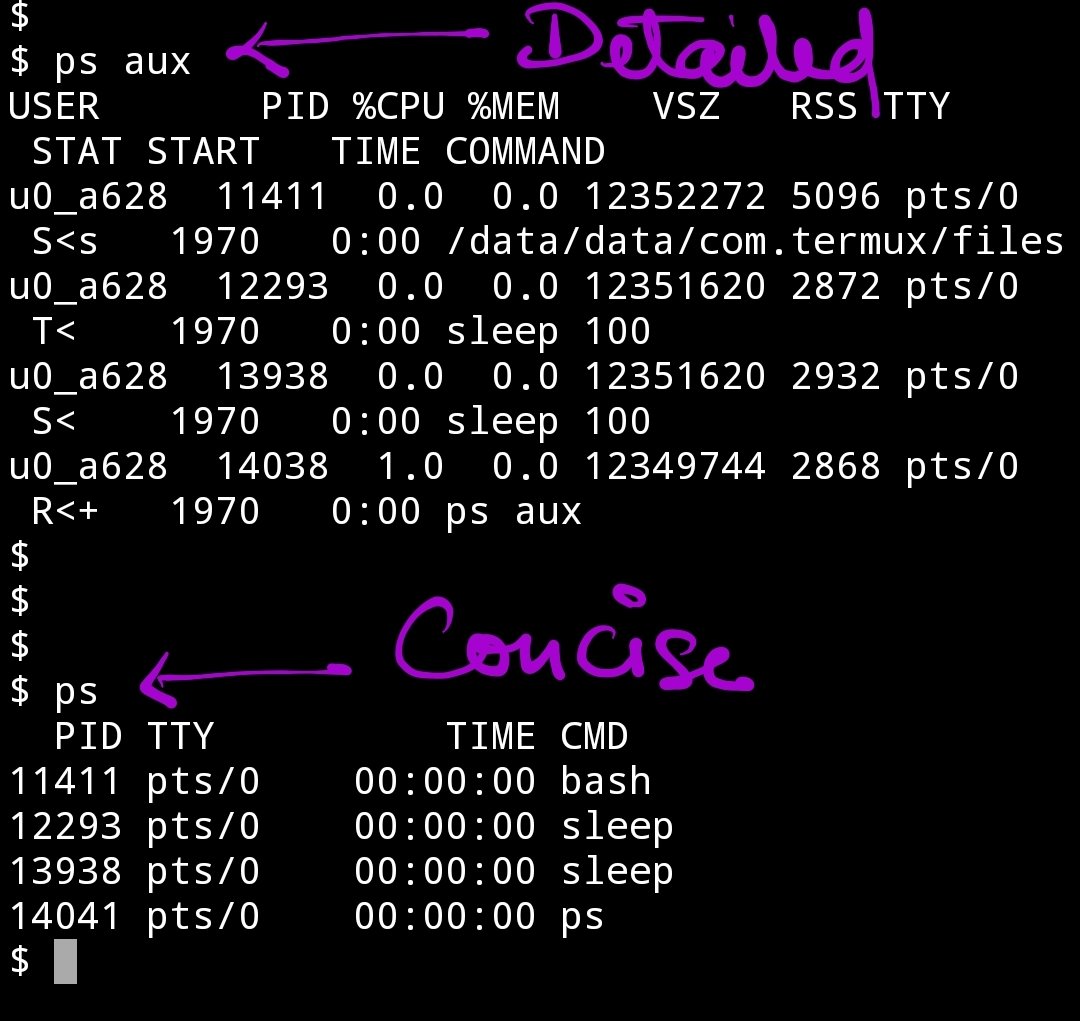
“ps” can display information about active processes.
“top” program provides a dynamic real-time view of a running system. It candisplay system summary information as well as a list of tasks currently being managed by the Linux kernel.

#7 – Managing Rights
3 User categories:
Owner(u), Owner Group(g), Others(o)
3 Rights:
Read(r), Write(w), Execute(x)
Two additional rights for executable files: setuid(s), setgid(s)
sticky bit (t) restricts file deletion. Only owner/owner of parent directory can delete files.


#8 – Octal Notation (4r 2w 1x)
chmod 754 file
read, write and execute permissions for owner (7=4+2+1); read and execute for group (5=4+1); read-only for others.
0 means no rights; thus “chmod 600 file” allows read and write permissions for owner, and no rights for anyone else.

#8B – Associate setuid bit
$ chmod 4754 file
It will associate the setuid bit with previously described rights (in “chmod 754 file”).
In octal notation, setuid, setgid, and sticky bits are represented by numbers 4, 2, and 1, respectively.
#chmod4754 #umask0022

#9 – View System Info & Logs
Memory
$ free
Disk Space
$ df -h
User Identity
$ id
Kernel
$ uname -a
Kernel Logs
$ dmesg
Systemd’s Journal Logs
$ journalctl -r -u ssh.service
Detected Hardware
$ lspci
$ lsusb
$ lspcmcia
$ lsdev
$ lshw
#System #Logs #Hardware #Information


#10 – Configuring Network with ifupdown
Configuration File:
/etc/network/interfaces
2 Main Directives:
auto network-device
iface network-device inet/inet6 type
Example:
auto eth0
iface eth0 inet dhcp
Deconfigure a network device
$ ifdown eth0
Bring up network:
$ ifup eth0


#11 – systemd-networkd
Configure it by placing “.network” files into the /etc/systemd/network/ directory
The [Match] section indicates the network interfaces the configuration applies to.
The [Network] section defines the network configuration.
Demo:


#12 – Unix Users & Groups
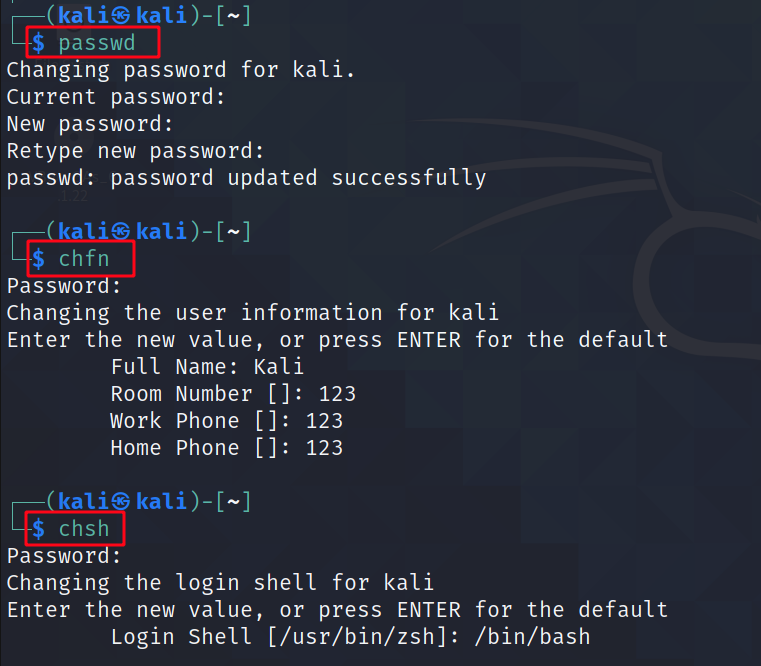
/etc/passwd – List of users
/etc/shadow – Encrypted passwords
/etc/group – List of groups
/etc/gshadow – Encrypted passwords of groups
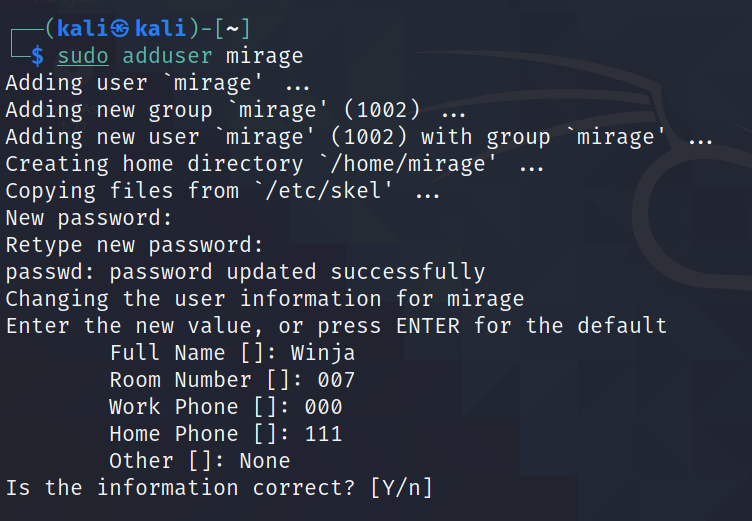
Creation of new account (adduser) triggers population of user’s home directory with contents of /etc/skel template.


#13 – Managing Unix Groups
User can set “setgid” bit on a directory, which causes files created in that directory to automatically belong to the correct group.
Commands:
1. addgroup
2. delgroup
3. groupmod
4. gpasswd
5. newgrp
6. sg
7. chmod g+s directoryName
#TryItOut


#14 – Configuring New Programs
1. Read package maintainer’s documentation:
/usr/share/doc/package/README
2. Look at software’s official documentation
dpkg -L package
dpkg -s package
3. Read self-documented configuration files and examples:
/usr/share/doc/package/examples/

#15 – SSH
Configuration File:
/etc/ssh/sshd_config
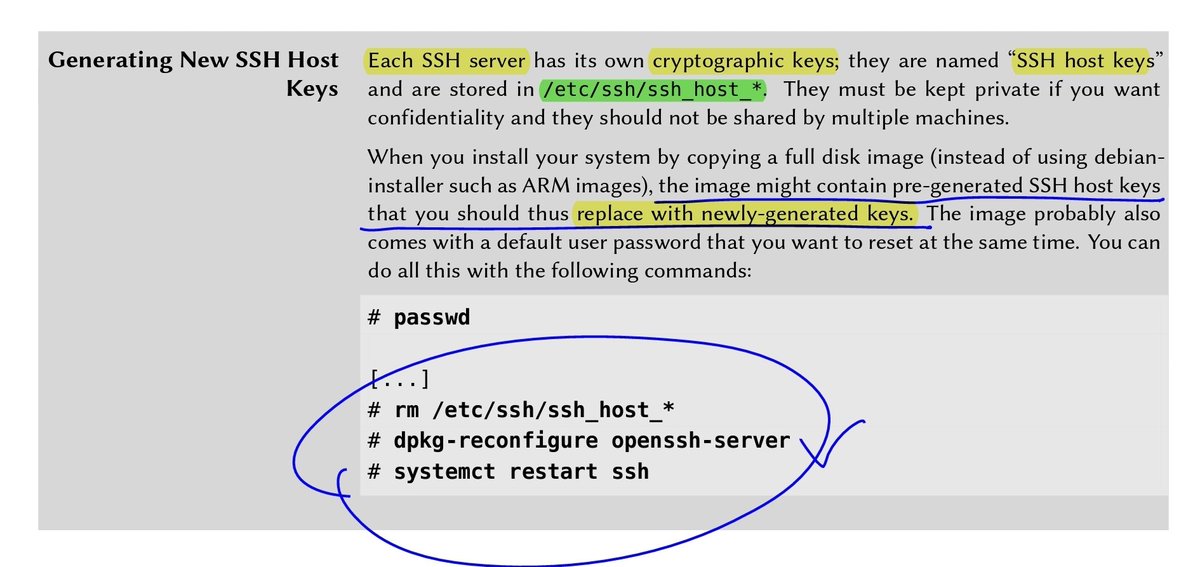
Each SSH server has its own cryptographic keys stored in /etc/ssh/ssh_host_* that must be kept private. They should not be shared by multiple machines.
systemctl start ssh
systemctl enable ssh
dpkg-reconfigure openssh-server

#16 – Apache
It’s a modular server.
“a2enmod” enables new modules. “a2dismod” is used to disable modules.
a2enmod ssl
a2dismod ssl
These programs create (or delete) symbolic links in /etc/apache2/mods-enabled/, pointing at actual files stored in /etc/apache2/mods-available/.


#17 – Name-based Virtual Hosts
Default virtual host is defined in /etc/apache2/sites-enabled/000-default.conf file.
Each extra virtual host is then described by a file (https://t.co/1hz0uO2h3q.conf) stored in /etc/apache2/sites-available/.
a2ensite

#18 – Manual Pages
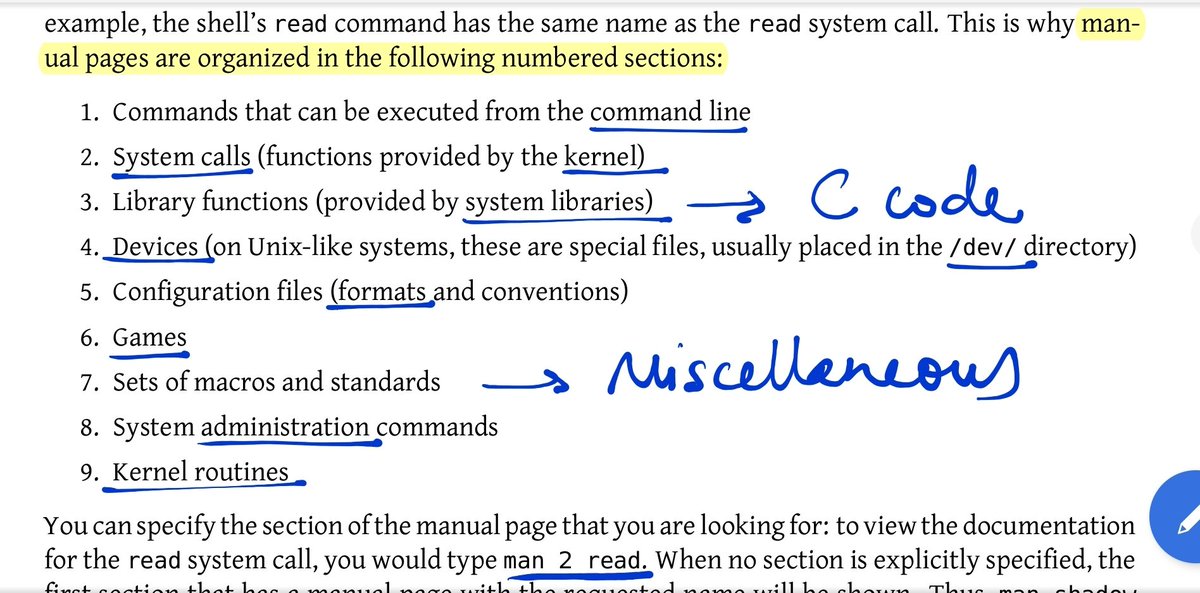
They not only document programs accessible from command line, but also configuration files, system calls, C library functions, and so forth.
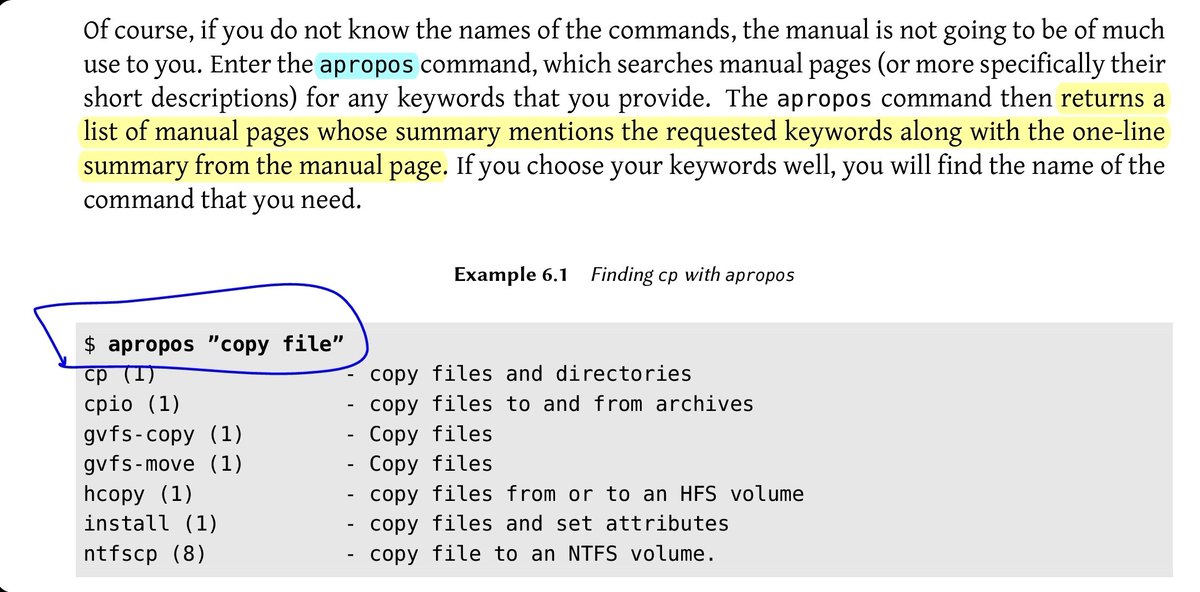
If you do not know name of a command, use “apropos” to search manual pages for any keywords
$ apropos “copy files”
#19 – Netfilter
Linux kernel embeds ‘netfilter’ firewall, that can be controlled with “iptables” and “ip6tables” commands
• Uses 4 distinct tables: filter, nat, mangle, raw
• Each table contains list of rules (i.e., chains)
• Rules can accept, refuse, or ignore packets


#20 – iptables rules
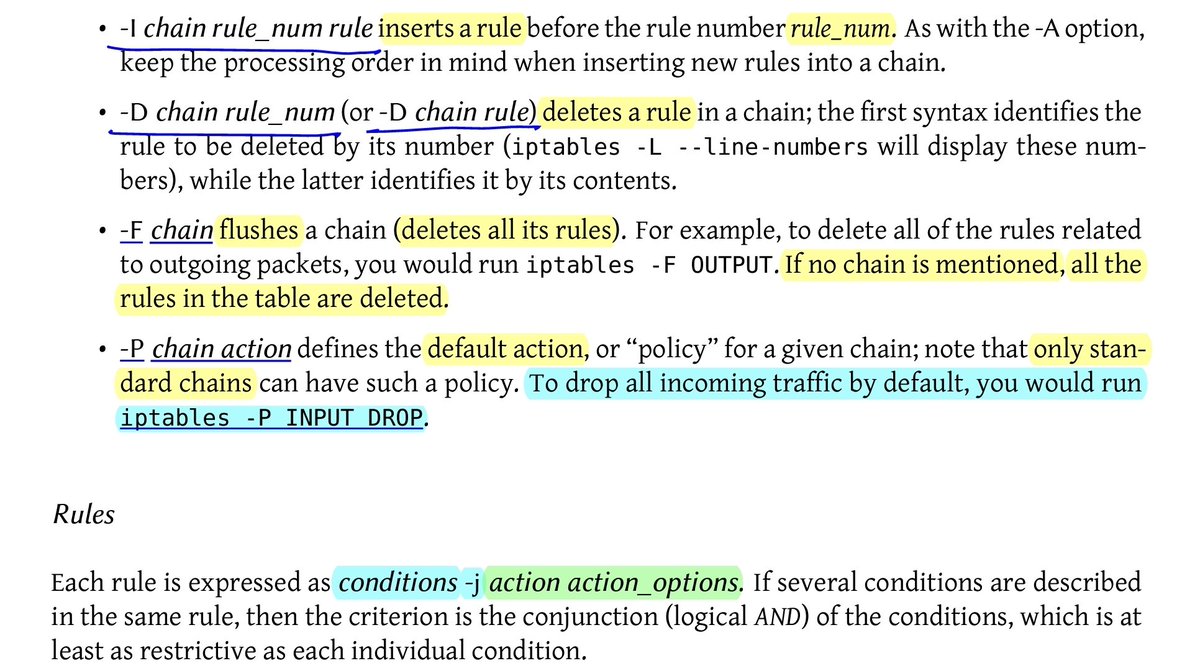
Syntax for defining rules:
“conditions -j action action_options”
Block malicious network traffic from a host:
# iptables -A INPUT -s 10.0.1.5 -j DROP
Permit network traffic for port 22:
# iptables -A INPUT -m state –state NEW -p tcp –dport 22 -j ACCEPT



#21 – { }
Use braces as a shorthand for repeating parts of a command.
$ touch /home/kali/file{1,2,3}.txt
$ mkdir -p folder{1,2,3}/tmp
#bash #braces #shorthand


#22 – APT and dpkg
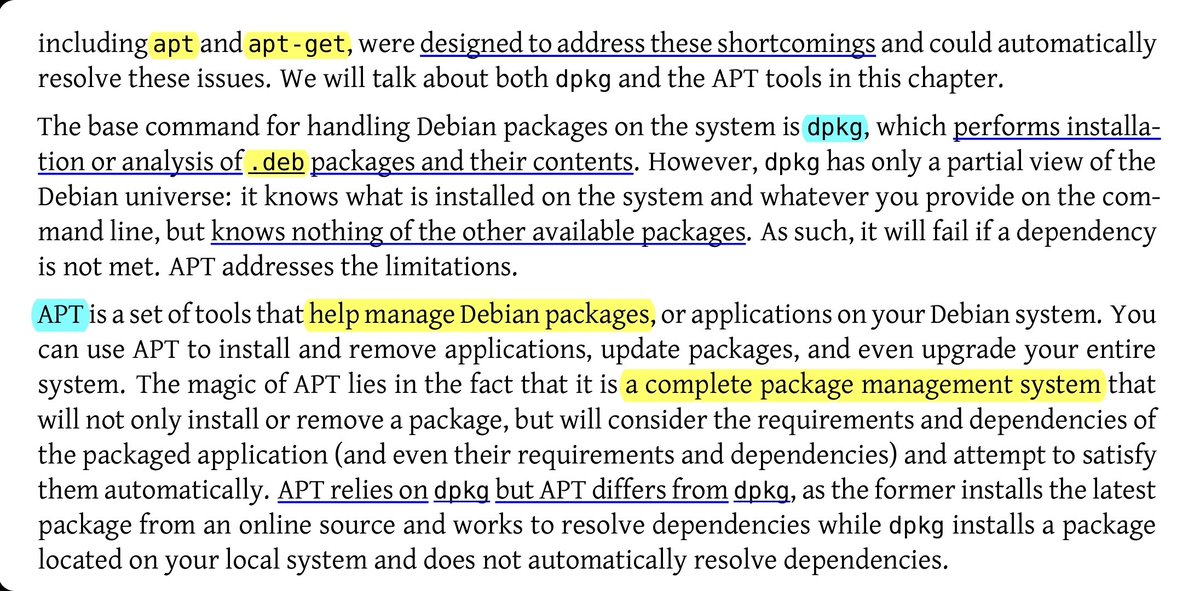
APT is a complete package management system that installs packages from online sources & resolves dependencies.
dpkg installs packages located on local system. It does not automatically resolve dependencies.
# dpkg -i file.deb
# apt install kali-tools-gpu

#23 – Upgrading Kali
During upgrade, if required, ‘apt’ will remove obsolete packages or install new dependencies:
$ apt update
$ apt full-upgrade
You can specify a specific distribution to upgrade packages from:
$ apt -t kali-rolling upgrade
Upgrade Kali at least once a week

#24 – Removing Packages
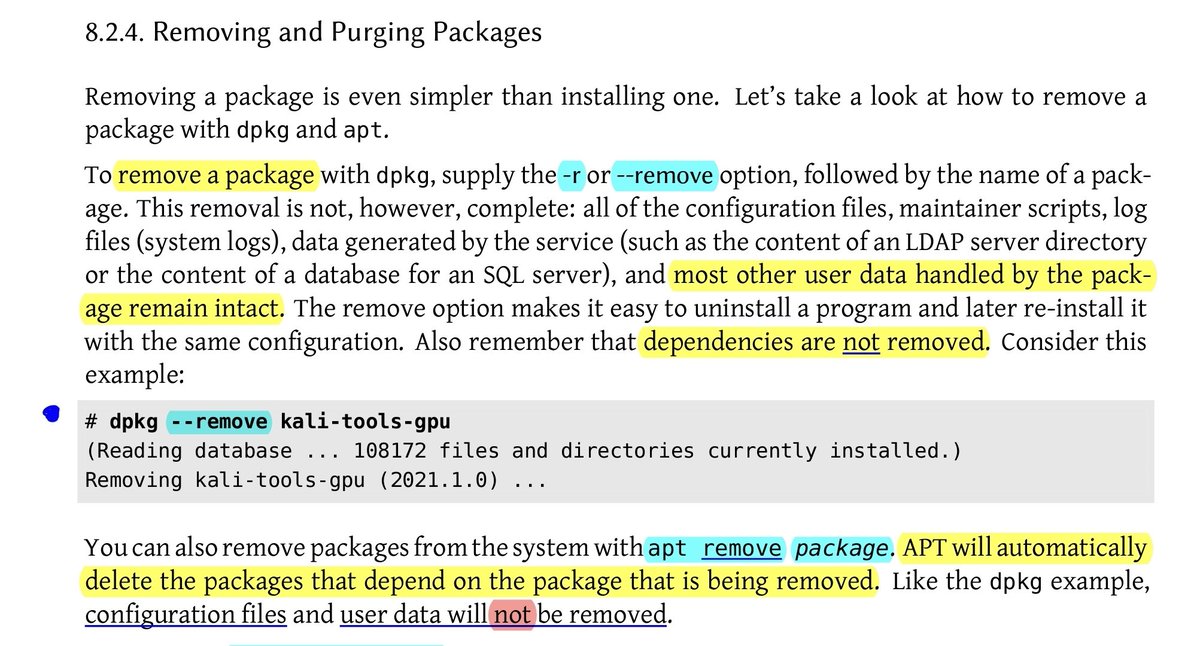
dpkg doesn’t remove dependencies
$ dpkg -r pkg
apt will remove dependencies, but configuration & user data remain intact
$ apt remove pkg
Remove all user data
$ dpkg -P pkg
$ apt purge pkg
Use suffixes
$ apt install pkg1 pkg2-
$ apt remove pkg1+ pkg2


#25 – Inspect Packages and .deb File
View Package Headers
$ dpkg -s whois
$ dpkg -I gpg.deb
(Caps i)
List of Files Installed/Included
$ dpkg -L whois
$ dpkg -c gpg.deb
Find package containing file path
$ dpkg -S /bin/date
Search for packages by name
$ dpkg -l ‘who*’
(Small L)


#26 – Configuration Directory with Suffix .d
/etc/apt/apt.conf.d/
A configuration file that’s split into multiple files
• All files contain instructions for configuration of APT
• Files are processed alphabetically
• Later files can modify/override configuration elements


#27 – Multi-Arch Support
$ dpkg –print-architecture
# dpkg –add-architecture i386
$ dpkg –print-foreign-architectures
# apt update && apt install wine32
# apt-get remove –purge `dpkg –get-selections | awk ‘/i386/{print $1}’`
$ sudo dpkg –remove-architecture i386
#TryItOut


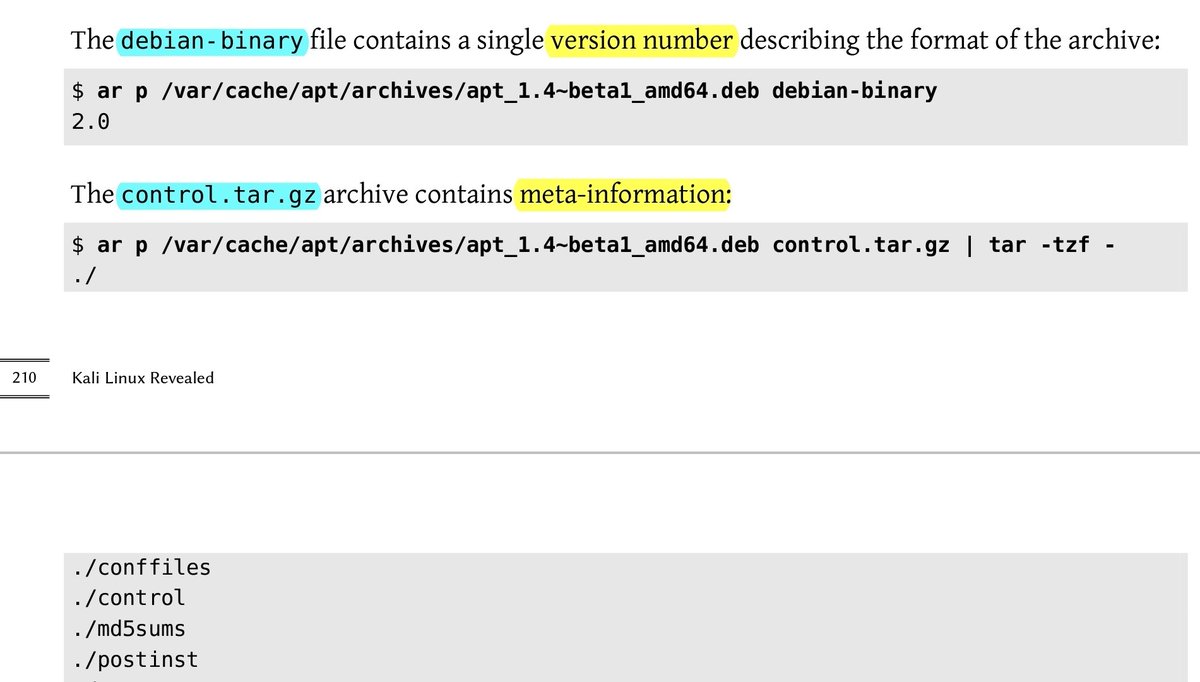
#28 – .deb is an ‘ar’ archive
Structure
$ cd /var/cache/apt/archives/
$ ar t apt_2.0.6_amd64.deb
Version
$ ar p apt_2.0.6_amd64.deb debian-binary
Meta-info
$ ar p apt_2.0.6_amd64.deb control.tar.gz | tar -tzf –
Actual files
$ ar p apt_2.0.6_amd64.deb data.tar.xz | tar -tJf –


#29 – Vulnerability Assessment
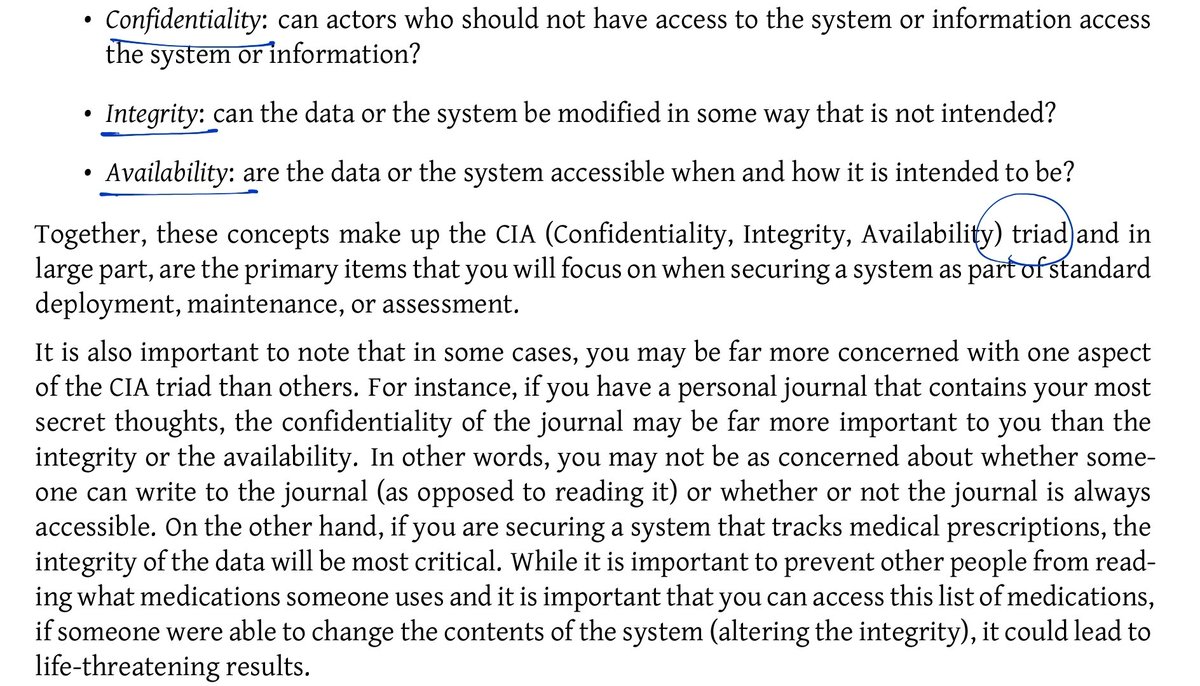
1. Define scope
2. Discover live systems
3. Enumerate listening services
4. Discover as much information as possible
5. Check for potential vulnerabilities
Few data points to collect:
OS Version
Patch Level
Processor Architecture
Software Version


#30 – The End?
After giving a quick read of this e-book (https://t.co/F7T77L8vsl), it seems we must take a detour towards:
https://t.co/6FbfxQl8fr
Road ahead looks exciting.. Let’s try a new tool each day. Shall we?
https://kali.training/courses/kali-linux-revealed/
https://tools.kali.org/tools-listing
#T1: DMitry – Deepmagic Information Gathering Tool
Example:
$ dmitry https://t.co/civ4ixl0r7
$ dmitry -winsepo out.txt https://t.co/ocNKjqYVtE
Find subdomains
$ dmitry -s https://t.co/civ4ixl0r7
TCP port scan
$ dmitry -p 10.1.0.7
Whois lookup
$ dmitry -i 10.1.0.7
#KaliTools
http://winja.site
http://example.com


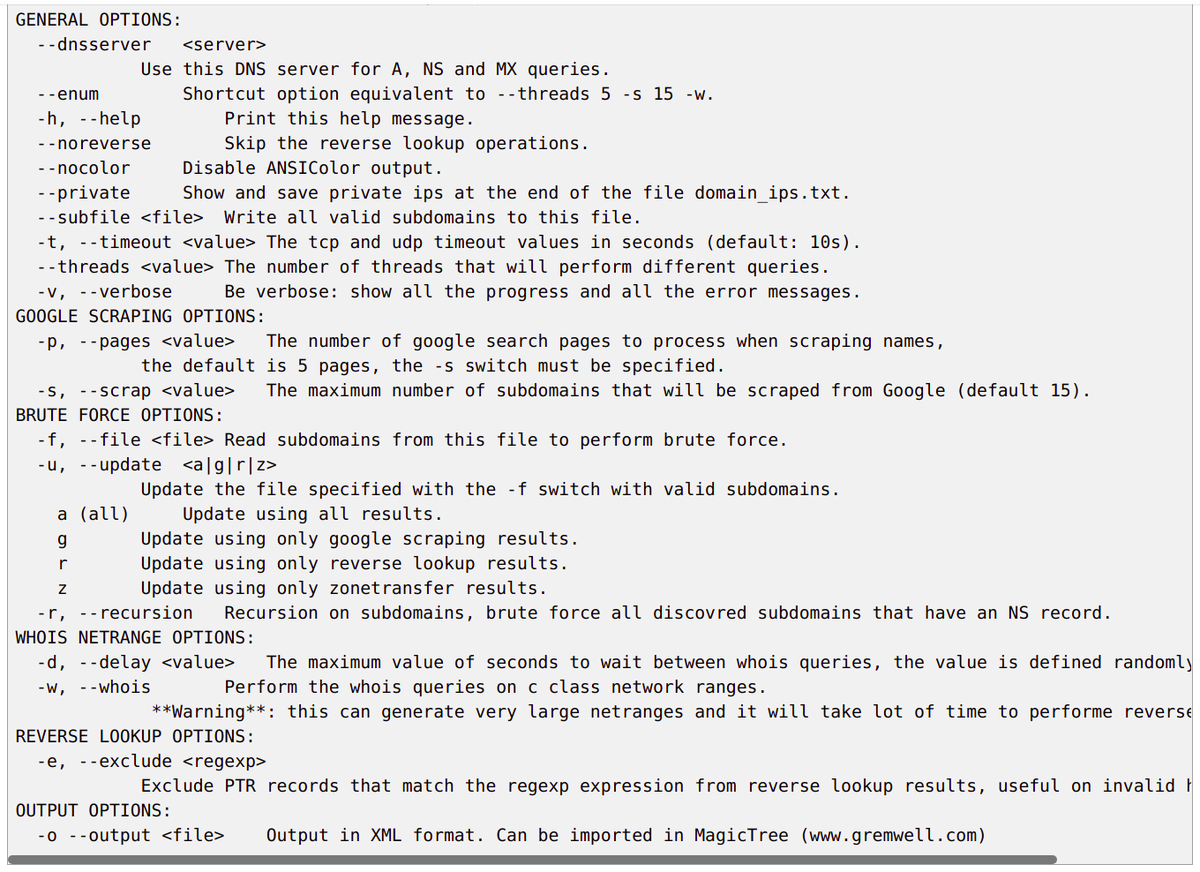
#T2: dnsenum
Purpose: Information gathering
Basic Command:
$ dnsenum –noreverse –enum -o output.xml https://t.co/CbqfkymjY4
Disclaimer:
Do not experiment on arbitrary sites, without the permission to do so. Experiment on sites that you own, or have permission for.

#T3 – dotdotpwn
Purpose:
Discover directory traversal vulnerabilities
Sample Usage:
$ dotdotpwn -m http -h 10.11.1.1
$ dotdotpwn
-m http-url
-h 10.11.1.1
-u http://10.11.1.1?page=TRAVERSAL -f “/etc/passwd”
-k “root”
-d 3
-M GET
-t 0.1
Further Reading:
https://gitlab.com/kalilinux/packages/dotdotpwn/-/blob/kali/master/EXAMPLES.txt


#T4 – EyeWitness
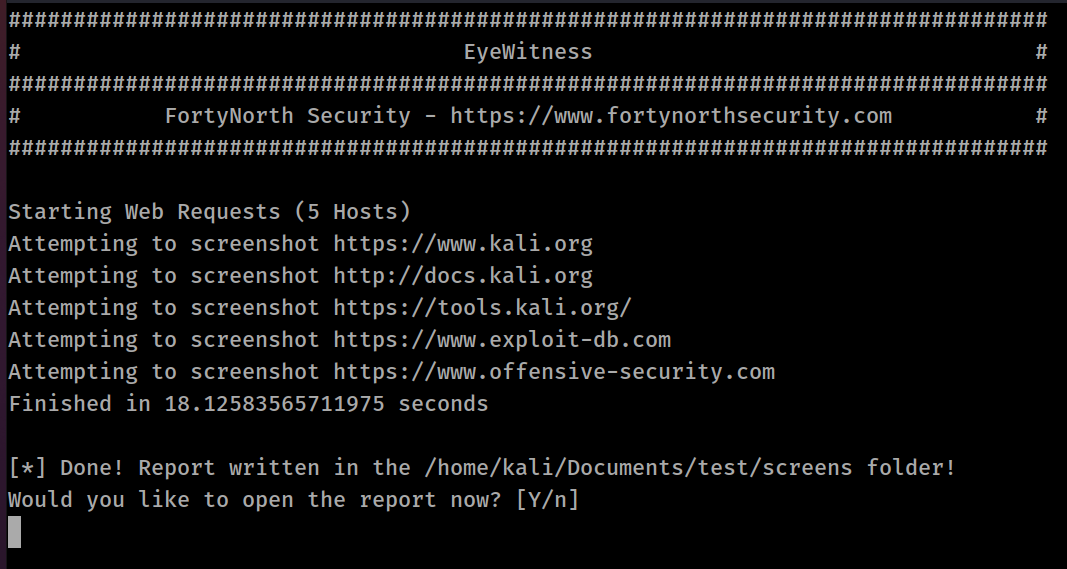
Purpose:
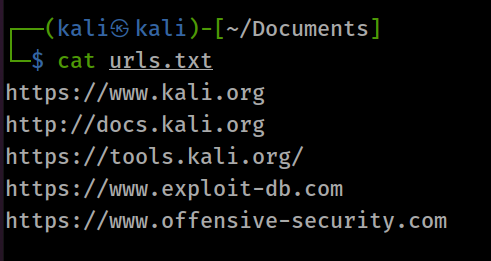
Take screenshots of a list of websites
Basic Command:
$ eyewitness -f urls.txt -d screens
Using Docker:
$ docker run -it -v ${PWD}:/tmp/EyeWitness eyewitness –web –single https://t.co/yWFiQL6a30
Further Reading:
http://www.google.com
https://www.christophertruncer.com/eyewitness-2-0-release-and-user-guide/

#T5 – Recon-ng
Purpose:
Conduct open source web-based reconnaissance
Example:
marketplace install recon/domains-hosts/builtwith
modules load recon/domains-hosts/builtwith
keys add builtwith_api <key>
options set SOURCE https://t.co/civ4ixl0r7
run
Demo:
http://winja.site
https://www.youtube.com/watch?v=MUyX2QQugs0

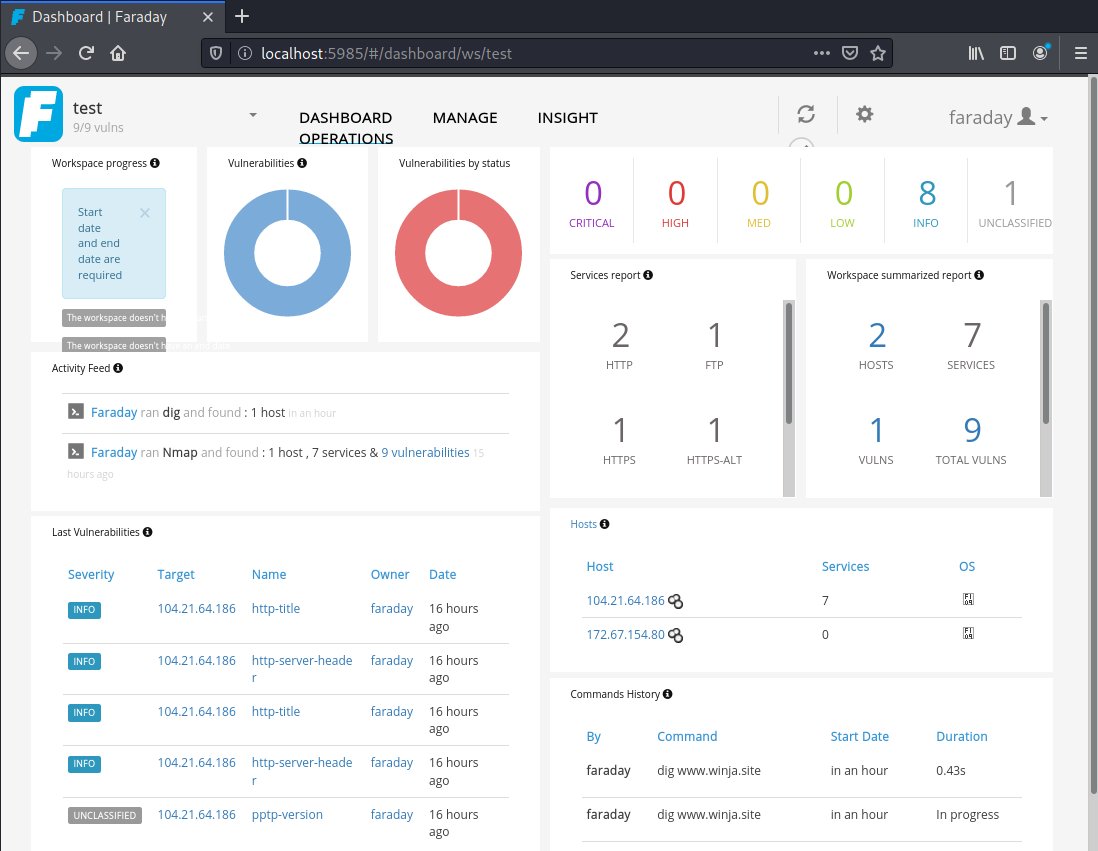
#T6 – Faraday
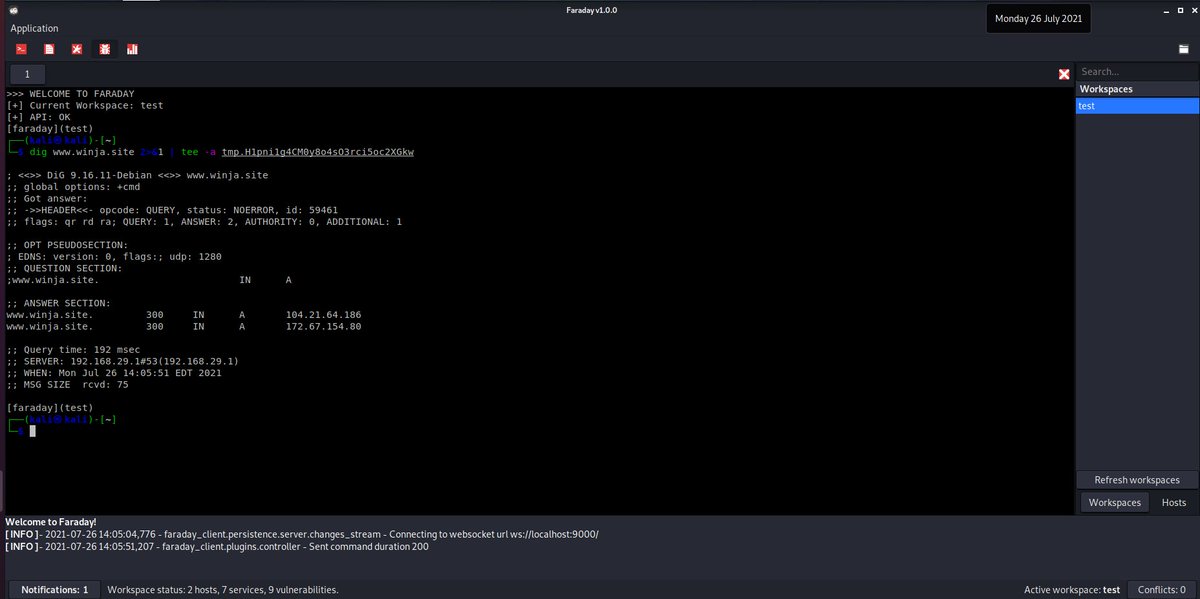
Purpose:
Integrated Penetration-Test Environment (IPE) for consolidated analysis of data generated while using a variety of usual pen-testing tools.
Supported commands are detected and results are imported, automatically.
$ faraday-client
https://tools.kali.org/information-gathering/faraday

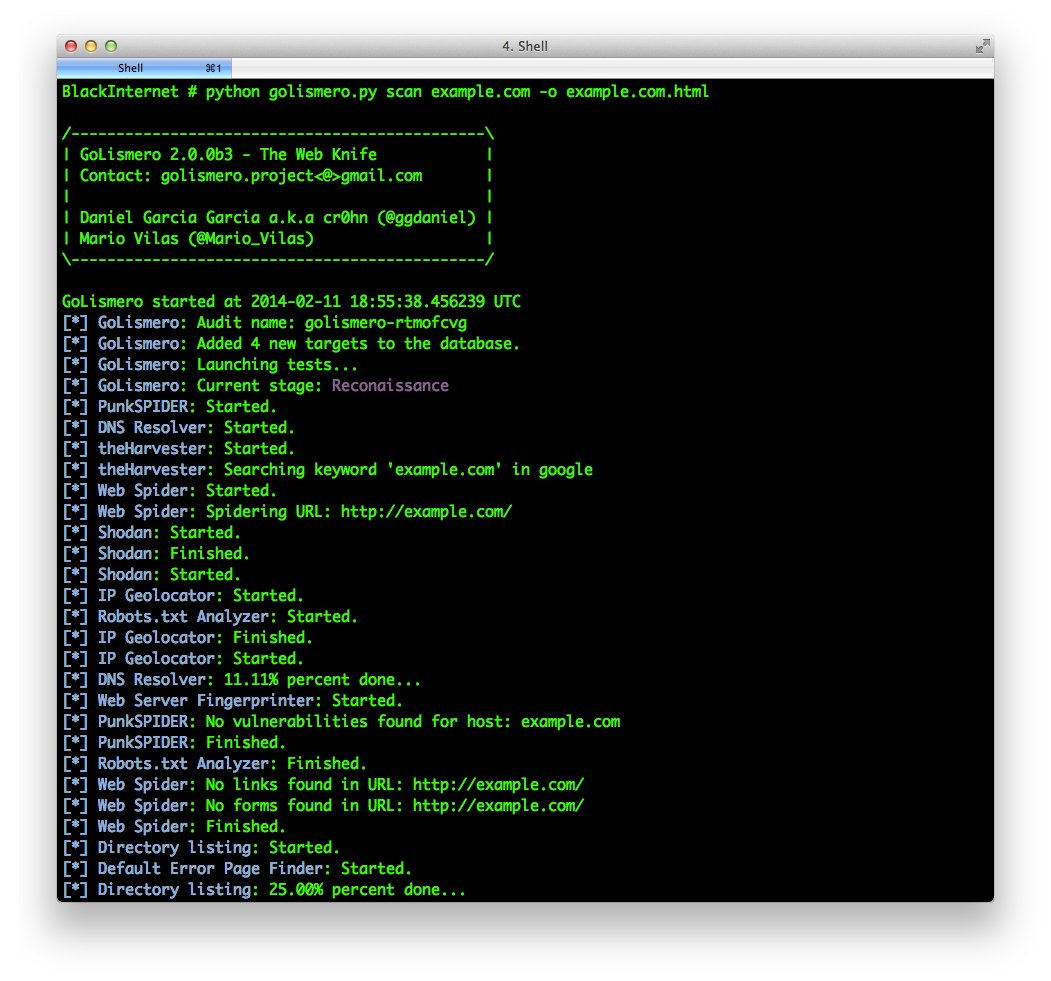
#T7 – Golismero
An open source framework for security testing.
Purpose:
1. Perform vulnerability scan on targets (domain names, IP addresses or web pages)
2. Import results from other tools
3. Write a report
Explore Here:
* https://t.co/Knx2nlIcjX
*
https://gitlab.com/kalilinux/packages/golismero
https://github.com/golismero/golismero-devel


#T8 – ident-user-enum
Purpose:
Query ‘ident’ service (TCP port 113) to determine owner of various processes listening on open ports of a target system
$ nmap -Pn -iL target.ip -p113 -oG nmap.port113
$ ident-user-enum 10.10.1.6 22 113 139 443 445 5353
https://tools.kali.org/information-gathering/ident-user-enum


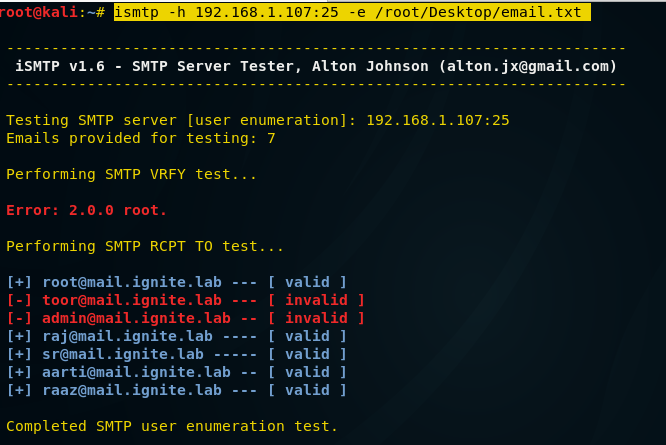
#T9 – ismtp
Purpose:
SMTP user enumeration [RCPT TO and VRFY]
1. Prepare list of potential email IDs (email.txt)
2. Prepare list of target IP addresses (ip.txt)
3. Install:
$ apt install ismtp
4. Enumerate:
$ ismtp -f ip.txt -e email.txt -o
$ ismtp -h 10.1.1.2:25 -e email.txt

#T10 – https://t.co/22vV9p0pbM
We hope you found our posts useful.
There are amazing tools listed here at https://t.co/22vV9p0pbM
Take your time to explore each one of them. Build your own arsenal.
Keep learning. Keep growing. Knowledge is power!